
✅ CCTV installed in the field can be monitored in real-time from the platform without the need for additional equipment.
▎CCTV monitoring
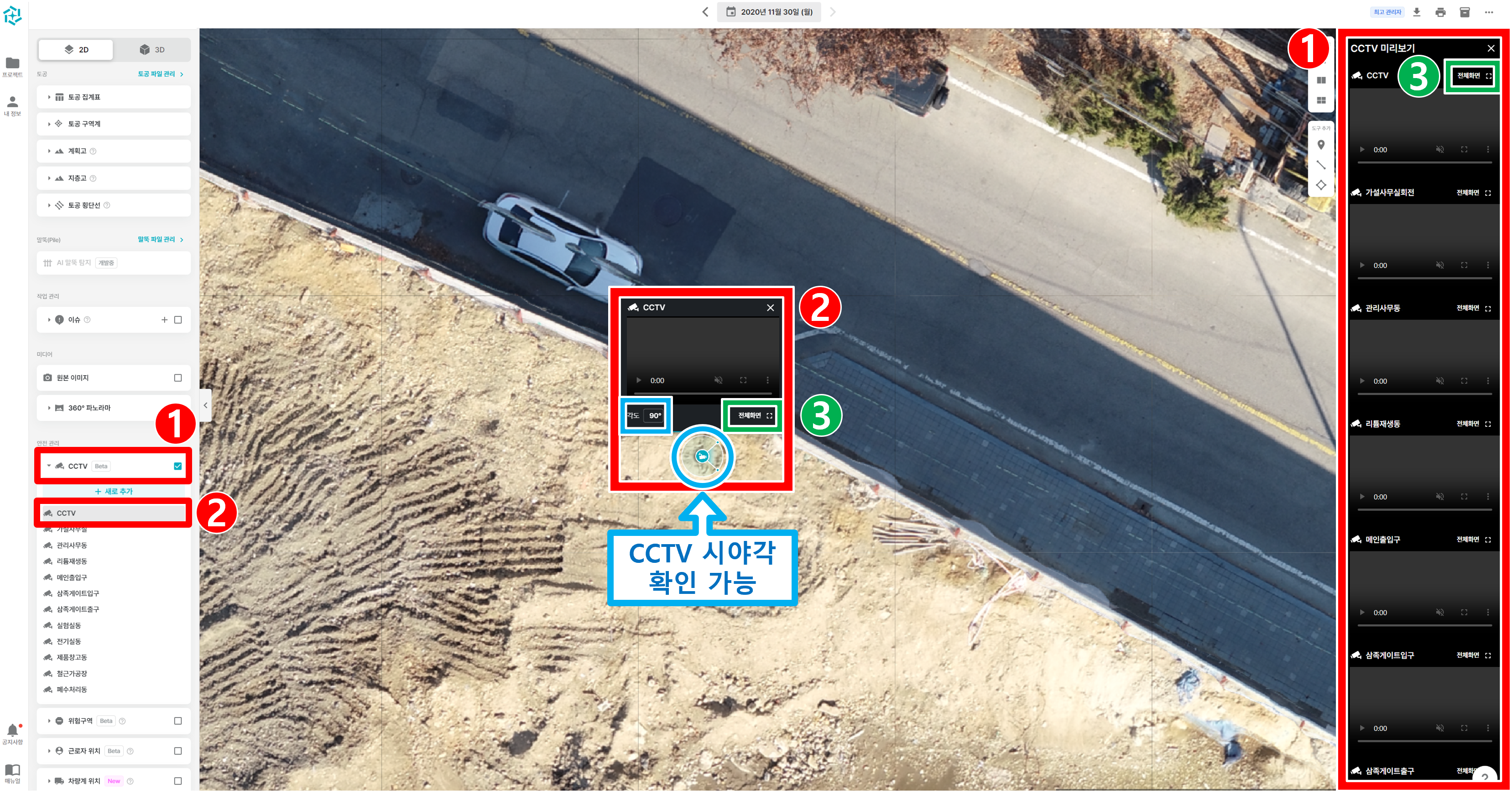 1. You can see the physical location and viewing angle of the CCTV on the platform screen.
① Enabling the checkbox in the CCTV menu will display a list of CCTVs and create a right sidebar where you can view live CCTV footage.
② Click on the name or icon of the CCTV you want to view, and the CCTV footage will be displayed above the icon. You can also see the field of view the CCTV is recording directly from the icon.
③ Click Full View to see the CCTV in question on a larger screen, which can also be viewed in 4- or 9-quadrant views.
⚠️ The CCTV screens are blacked out for security reasons, but you can actually see the CCTV footage in real-time.
2. The full, quadrant, and 9-quadrant comparisons available when you click View Full.
① There are buttons at the top to toggle between full view, 4-quadrant comparison, and 9-quadrant comparison, so you can select the screen you want to compare.
② The dropbox in the top left corner of each screen allows you to select the desired CCTV footage, which will appear black if no CCTV is selected.
③ You can close the Comparison Monitoring screen by clicking the Close button.
▎Add new CCTV
1. Enter the information for the new CCTV.
① Click the + Add New button.
② Enter the CCTV name, RTSP URL, RTSP ID and password.
③ Based on the information entered, a unique RTSP link for that CCTV is created. You can share this link to stream the CCTV not only on the platform, but also on Onvif, VCL Player, etc.
④ Tap the Add button to complete the registration of the new CCTV.
2. Specify the location of the CCTV (required the first time)
① Click on the new CCTV with the 'No Location' mark.
② Click the Specify location button.
③ Specify the location of the CCTV by left-clicking the desired location on the screen. Further adjustments can be made by dragging the CCTV icon.
▎View and modify existing CCTV data
① In the CCTV list, click the name of the CCTV whose data you want to view or edit.
② Click the pen icon to edit, or the trash can icon to delete.
③ You can see the information you filled out when you added the CCTV.
④ You can copy the RTSP unique link for that CCTV.
① You can edit the CCTV name.
② Press the Reset button to reset the position of the CCTV.
③ After pressing the Position button, you can position the CCTV by clicking on the desired point on the screen.
④ You can modify RTSP information.
⑤ When you modify the RTSP information, the corresponding CCTV RTSP unique link is also automatically modified.
⑥ When you're done making all your edits, press Save to complete the edits.